Find
Search the open document for a word or a phrase, see every match at once and step from one to the next.
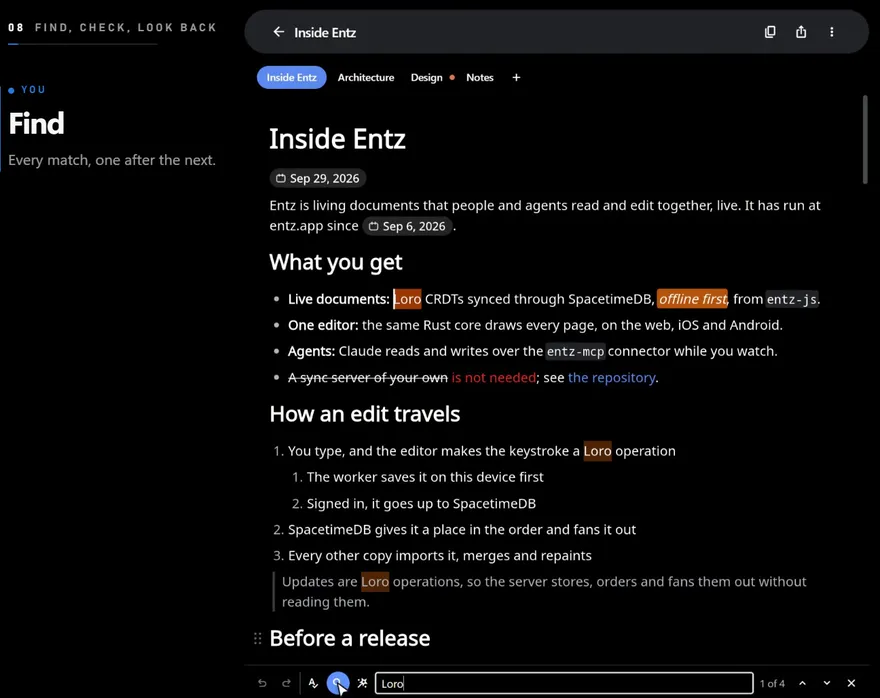
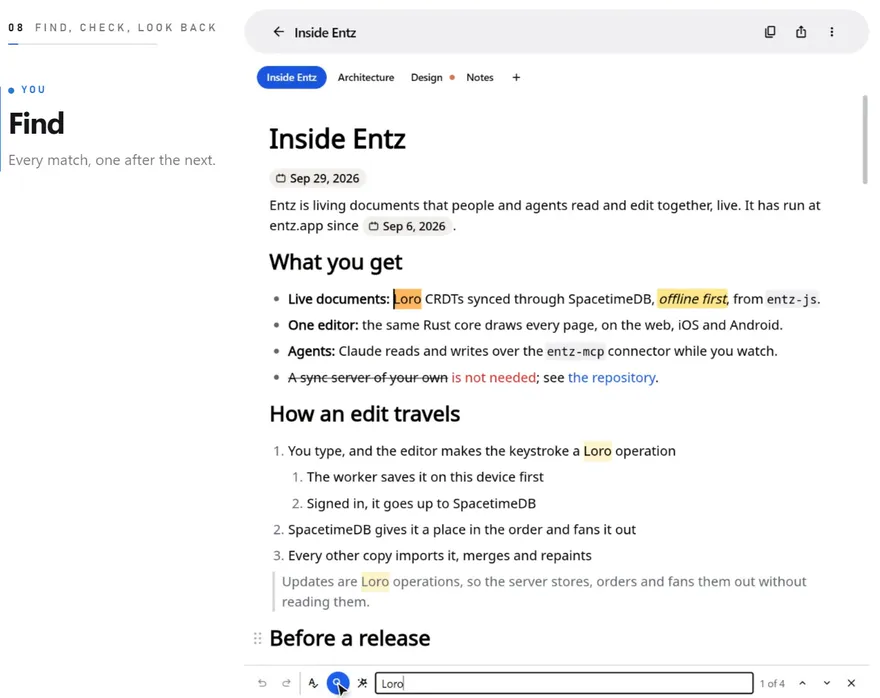
Find looks through the document you have open. Every match lights up as you type, and a count tells you which one you are on.
Open the search
Section titled “Open the search”- Press the magnifying glass in the status bar under the document (Find in document).
- Press
Ctrl+F(Cmd+Fon macOS) while you are writing in the document. - On the web, right-click in the document and choose Find in document.
The field opens in the status bar, in place of the people and the counts on its right, and the magnifying glass stays highlighted while the search is open. On a phone the field takes the whole bar, hiding the other tools until you close it.
Matches
Section titled “Matches”As you type, every match is tinted amber and the current one a deeper orange. The count beside the field reads “3 of 12”, or No results when nothing matches.
The first current match is the first one at or after the caret, so a search starts from where you are. The page scrolls to the current match and the caret moves to its start. The words are tinted rather than selected, so the formatting menu stays out of the way.
Matching ignores case: loro finds Loro and LORO. There is no option to match case or whole words, and Find does not replace text.
Find looks in paragraphs, headings, lists, quotes, table cells and code blocks, including the source of a diagram or a formula. Text on a drawing is not searched. In a document with tabs, Find searches the tab you are on.
The matches follow the document as it changes, with your edits and other people’s, and so does the count.
Step through the matches
Section titled “Step through the matches”| To | Press |
|---|---|
| Go to the next match | Enter, the down arrow beside the count (Next match), or the keyboard’s Next key on a phone |
| Go to the previous match | Shift+Enter, or the up arrow beside the count (Previous match) |
| Close the search | Escape, the × button (Close the search), or the magnifying glass again where it shows |
Stepping wraps around: after the last match comes the first, and before the first comes the last.
Close the search
Section titled “Close the search”Closing the search clears the tints and the field, and puts you back in the document with the caret at the match you were on, ready to type there. The next search starts with an empty field.
To find a document rather than words inside one, search the library.