Presence and following
See who else is in a document and where they are working, set the name they see, and follow a person or an agent as they move through it.
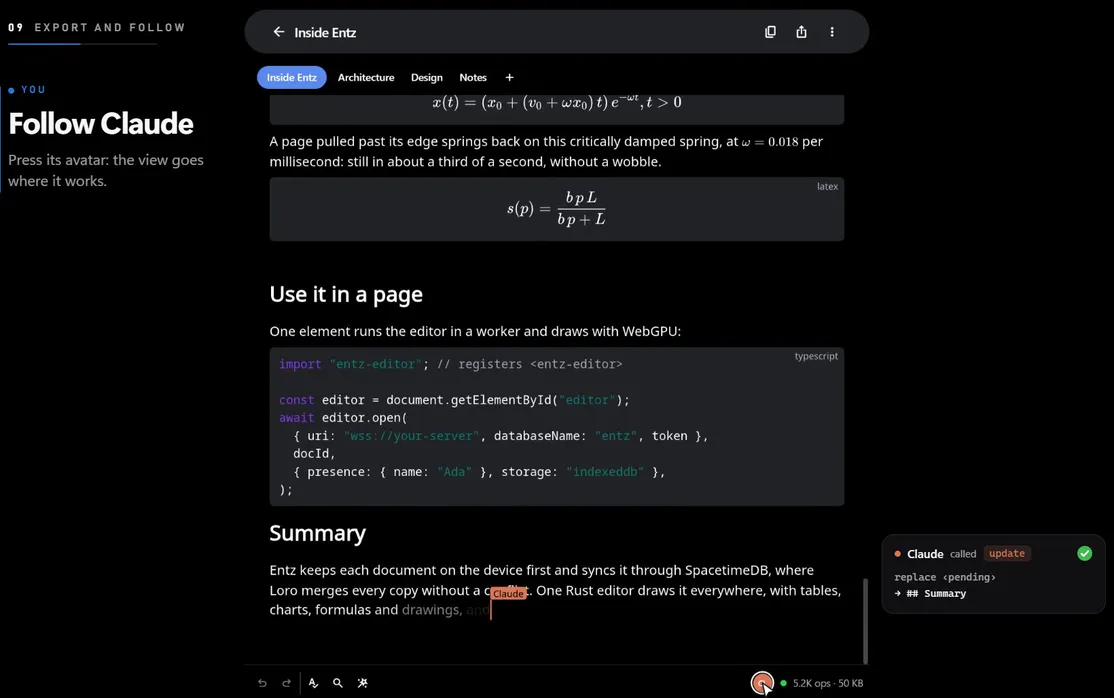
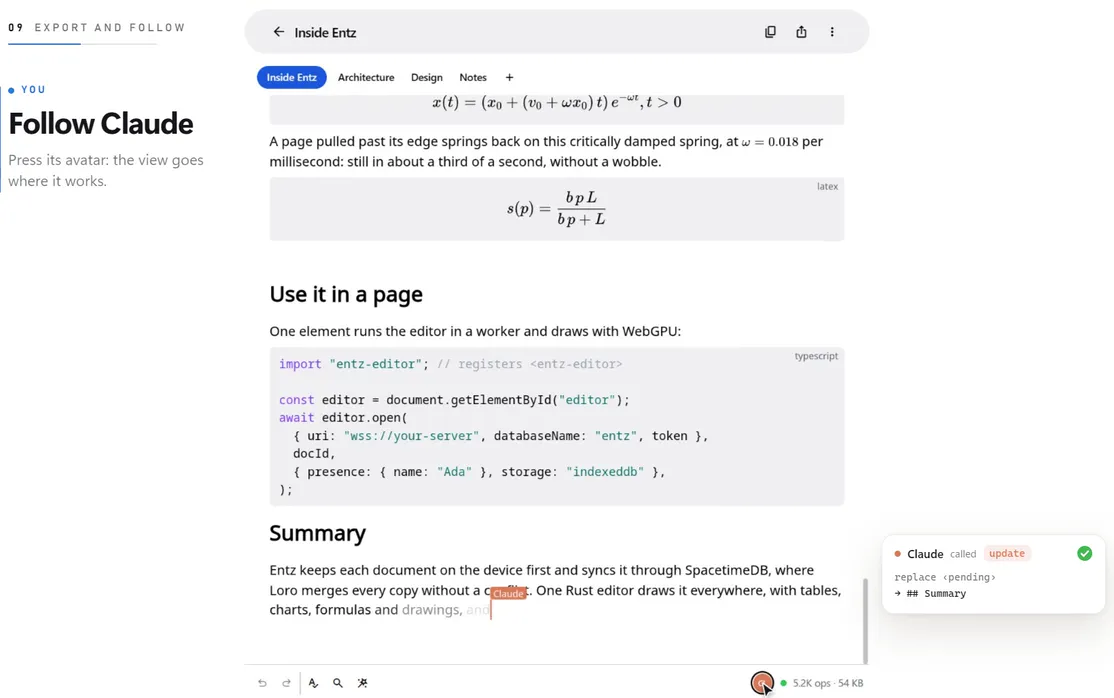
When a document is open online, everyone else in it shows: in the status bar, in the text itself, and beside the document’s tabs. Presence travels only while you are connected and is never saved, so a document opened offline or signed out shows no one (Offline and sync).
Who is here
Section titled “Who is here”- The status bar. At the right of the bar under the document, each person in it is a circle with their initials in their colour. The row lists everyone on any of the document’s tabs, in the same order whichever tab you are on. Someone who arrived a moment ago and has no caret yet is dimmed.
- Carets and selections. Each person’s caret is drawn in their colour, with their name in a tag while it moves; the tag fades a couple of seconds after they stop. What they select is tinted in their colour.
- The right edge. Down the right edge of the document, a small circle for each person sits level with the part of the document they are looking at, and glides there as they scroll.
- The connection dot. After the circles, a dot is coloured while this document is connected and grey while it is not.
You show up the same way for them. If you have the same document open somewhere else as well, such as in a second browser tab or on your phone, you appear there as another person with your name.
Your name and colour
Section titled “Your name and colour”Others see your display name: Display name under Connection in Settings. Left empty, it is the name of the account you signed in with. Your colour follows from your name, one of six, and you cannot pick it.
Across tabs
Section titled “Across tabs”In a document with tabs (Tabs), beside each tab you are not on, a dot in each person’s colour shows who is there: up to three dots, then a count. A dot pulses while that person is typing. The status bar lists the people on other tabs as well, and pressing one of them takes you to their tab.
Follow someone
Section titled “Follow someone”Press someone’s circle in the status bar to follow them. The view goes to what they can see and keeps up as they scroll and type, and a ring marks their circle in the status bar and at the right edge. If they are on another tab, Entz opens it, and when they move to another tab the view goes with them.
Following stops when:
- you press their circle again;
- you scroll or touch the document yourself;
- you choose a tab yourself.
Press and hold a circle instead to go to that person once, without following them.
Agents
Section titled “Agents”An agent connected over MCP shows in presence as a person does, with the name and colour its connector was given: Claude unless it was set to another name (Connect an agent, Working beside people).
- As it writes, its words fade in one after another, and its caret walks with them. Its name tag stays up until the last word is in.
- It shows on one document at a time, the one it last read, wrote or commented on, and leaves 90 seconds after it stops working there.
- Until it has a caret, its circle is dimmed, but you can still press it: the view goes to where it next writes.
- Following an agent follows the caret through its words, and moves with it to another tab.
The built-in assistant (The assistant) shows the same way while it answers, named after its model’s maker (Claude, GPT, Gemini, Grok, or Assistant), and leaves a few seconds after its last word. Everyone with the document open sees it write.