Tables
Rows and columns with grips, menus and a colour for each cell, and cells that hold lists, images, dates and dropdowns.
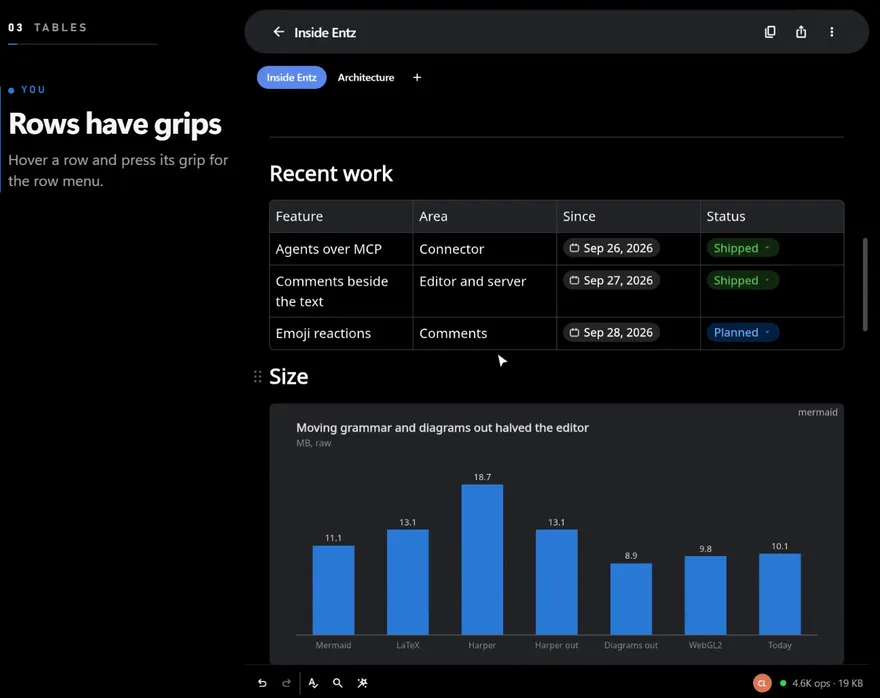
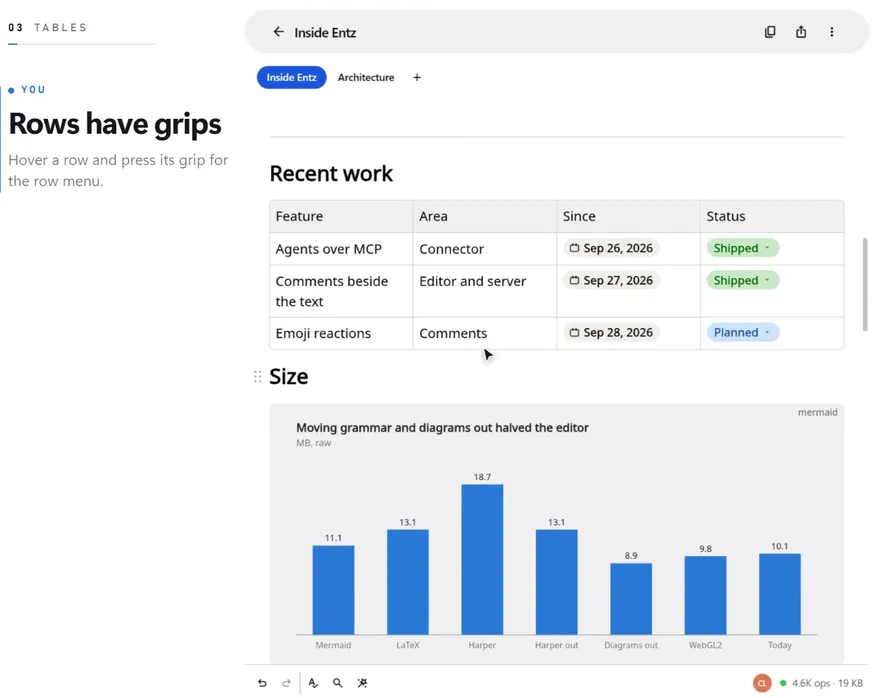
A table sits in the document like any other block, and each cell holds writing of its own. Its controls appear as you work on it: grips on the rows and columns, + bars on its edges, and borders you can drag.
Making a table
Section titled “Making a table”- Table in the slash menu (Writing and formatting) adds a table of two rows and two columns after the block the caret is in, with a header row, and puts the caret in its first cell.
- Markdown with a table in it, pasted or imported, arrives as a table with its column alignments (Import and export).
To move the whole table, drag its block grip in the margin, left of its first row. To remove it, choose Delete table from a row or column menu, or Delete block from its grip. Deleting the only row or the only column left deletes the table too, and undo brings it back.
Typing and moving between cells
Section titled “Typing and moving between cells”| Keys | What they do |
|---|---|
Tab |
The next cell. From the last cell, a new row |
Shift+Tab |
The previous cell. From the first cell, the table itself is selected |
Enter |
The cell below. From the last row, a new row |
Shift+Enter |
A line break inside the cell |
| Arrow keys | Across cells, and out of the table at its edges |
At either end of a cell’s text, Left and Right go on into the neighbouring cell; Up and Down move to the cell above or below. In a list inside a cell, Enter adds an item, and Enter on an empty item ends the list. A selection made with Shift and the arrows stays inside one cell. The slash menu and the Markdown prefixes do not work in a cell: the cell menu below offers what a cell can hold instead.
Rows and columns
Section titled “Rows and columns”Move the pointer over a cell and a short bar shows on its row’s left edge and on its column’s top edge. Reach a bar and it grows into a grip.
- Press a row’s grip for its menu: Insert row above, Insert row below, Delete row and Delete table.
- Press a column’s grip for its menu: Insert column left, Insert column right, Delete column and Delete table.
- Drag a grip to move its row or column. A line shows where it will land. A column takes its width and alignment with it.
The row or column stays tinted while its menu is open.
With the pointer in the last column, a + bar shows beside the table; in the last row, one shows under it. A press adds a column at the right or a row at the bottom.
To resize columns, move the pointer onto the border between two of them: the pointer changes and the border turns the accent colour. Drag it, and the two columns beside it change while the table keeps its width. No column gets narrower than 48 pixels. Each column keeps its share of the table’s width, so the table fits whatever screen shows it.
On a phone, the grips of the cell with the caret show at full size. A tap on a grip opens its menu, a drag moves its row or column, and the + bars show when the caret is in the last row or column.
The cell menu
Section titled “The cell menu”A right click in a cell opens the editor’s menu with the table’s items first, then Cut, Copy, Paste, Select all and Find in document.
| Item | What it does |
|---|---|
| Insert row above, Insert row below | A new row beside the cell’s |
| Insert column left, Insert column right | A new column beside the cell’s |
| Delete row, Delete column, Delete table | Removes the cell’s row, its column, or the whole table |
| Sort column ascending, Sort column descending | Orders the rows by this column |
| Align left, Align center, Align right | Aligns the column |
| Cell color… | Colours the cell (below) |
| Toggle header row | Makes the first row a tinted header row, or an ordinary row again |
| Dropdown, Date | Puts a chip in at the caret (below) |
| Bulleted list, Numbered list, Checklist | Turns the paragraph the caret is in into a list item |
| Image | Picks an image from the device and adds it to the cell |
Sorting keeps a header row first. Numbers sort by value, ignoring currency signs, commas, percent signs and spaces, and come before other text; other text sorts alphabetically without regard to case; empty cells go last in either direction. The rows move rather than being rewritten, so someone typing in a row keeps their place in it.
A cell’s colour
Section titled “A cell’s colour”Cell color… opens the Cell color sheet: a colour picker with nine preset hues (grey, red, orange, yellow, green, teal, blue, purple and pink) and any other colour you pick. The cell changes as you choose. No color takes the colour away. The colour is laid over the page at a quarter of its strength, so it reads on a light theme and a dark one.
What a cell holds
Section titled “What a cell holds”A cell holds words with any marks and links, list items (bulleted, numbered and checklists), images, and chips inside its text. It holds no headings, quotes, code or tables. Selecting words in a cell raises the selection menu, without its Block type button.
Date in the cell menu puts today’s date in, reading like Oct 6, 2026, and opens its calendar straight away. Press or tap a date later to change it: the web shows the browser’s date picker, iOS a calendar (beside the chip on an iPad, in a sheet on an iPhone), and Android the system’s date dialog. Picking a day changes the chip.
A chip is one piece: typing never lands inside it, and Backspace or Delete beside it removes it whole.
Dropdowns
Section titled “Dropdowns”Dropdown in the cell menu puts in a dropdown with nothing picked and opens its options at once.
- Shared down a column. In a column that already holds a dropdown, a new one takes that column’s options, and the two share one list. In any other column it starts with Not started, In progress and Done, and its list is named after the column’s header when the table has a header row.
- Picking. Press or tap a dropdown for its menu: the options with their colour dots, the picked one marked, then Clear, which takes the pick away, and Edit options. A dropdown with nothing picked shows its list’s name, or Select when the list has none.
- Editing the options. Edit options opens an editor over the chip: the list’s name at the top, a row per option with its name to change and a pencil holding its colours, Move up, Move down and Delete option, then Add option at the bottom. Save gives every dropdown that shares the list the new options, wherever it is in the document. The back arrow, a press outside or
Escapecloses the editor without saving.
A pick follows its option: an option renamed in place keeps its picks, and dropdowns that picked a deleted option are left with nothing picked.
An option has Default for its colour until you give it one, and the default is the hue of its place in the list: blue, teal, green, amber, red, pink and purple, then round again. The pencil’s menu offers Blue, Teal, Green, Yellow, Red, Pink, Purple and Gray besides.
Export
Section titled “Export”A Markdown export writes each table as a pipe table with its column alignments, the first row as its header. A cell’s lists and images go on one line with <br> between them, a date as its label and a dropdown as its pick. Cell colours have no Markdown form and are left out. The HTML export keeps the header row and the cell colours, the Typst export keeps each cell’s text, and an .ent file keeps everything. Import and export has the details.