Writing and formatting
Blocks, marks and links in an Entz document, and the menus, keys and gestures that make them on the web and on a phone.
A document is a column of blocks: paragraphs, headings, lists, quotes and code, with the larger pieces that sit among them (tables, drawings, images and dividers). Words inside a block can carry marks, such as bold or a link. Every block has a grip in the margin that changes its kind or moves it.
On a Mac, Cmd works wherever this page says Ctrl, and so does Ctrl itself, which a quote needs: Cmd+Shift+Q is the Mac’s Log Out. Keyboard shortcuts lists every key with its Mac form.
Kinds of block
Section titled “Kinds of block”| Block | In the slash menu | Type at the start of a paragraph, then a space | Keys |
|---|---|---|---|
| Paragraph | Text | Ctrl+0 |
|
| Headings | Heading 1, Heading 2, Heading 3 | #, ##, ### |
Ctrl+1, Ctrl+2, Ctrl+3 |
| Bulleted list | Bulleted list | - or * |
Ctrl+Shift+L |
| Numbered list | Numbered list | 1. |
|
| To-do list | To-do list | [] or [ ] |
|
| Quote | Quote | > |
Ctrl+Shift+Q |
| Code block | Code block | ``` |
Ctrl+Shift+K |
| Mermaid diagram | Diagram | ```mermaid |
|
| TeX formula | Formula | ```latex |
|
| Divider | Divider | ||
| Table | Table | ||
| Drawing | Drawing | ||
| Image | Image |
The kinds from Text to Formula change the block the caret is in, or every selected block at once. The same kinds are in the grip’s menu and behind the selection menu’s Block type button. Divider, Table, Drawing and Image are in the slash menu alone, and each adds a new block after the one the caret is in. Tables, Images and drawings and Diagrams, math and code cover those blocks.
The slash menu
Section titled “The slash menu”Type / at the start of a block, or after a space, and a menu of blocks opens at the caret. The slash does not go into the document. What you type next filters the menu, by name and by a few other words: todo finds To-do list, math finds Formula, photo finds Image. Move with the arrow keys and pick with Enter, Tab or a click; Escape closes the menu. A second / straight away types a slash, which is the way to start a word with one. When nothing matches, the menu closes and the letters you typed after the slash go into the text.
The menu opens in paragraphs, headings, lists and quotes. In a code block or a table cell a slash is only a slash.
Markdown as you type
Section titled “Markdown as you type”The prefixes in the table work at the start of a paragraph: type ## and a space, and the paragraph becomes a heading, the prefix gone. Three backticks, followed by a language name if you want one (```python), become a code block when you type a space or press Enter. The prefixes do nothing inside a table cell. Pasted Markdown arrives formatted as well (see Pasting).
Lists and quotes
Section titled “Lists and quotes”Entercontinues a list;Enteron an empty item ends it.Tabindents a list item or a quote andShift+Taboutdents it, as far as eight steps in.Backspaceat the start of an indented item outdents it. At the start of any other kind of block, it turns the block back into a paragraph.- A numbered list counts by itself.
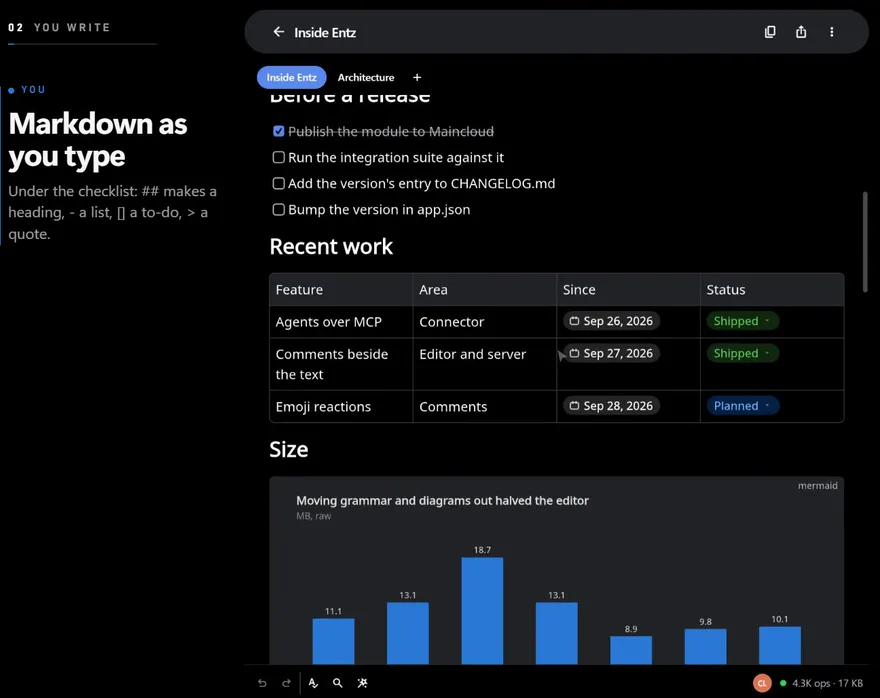
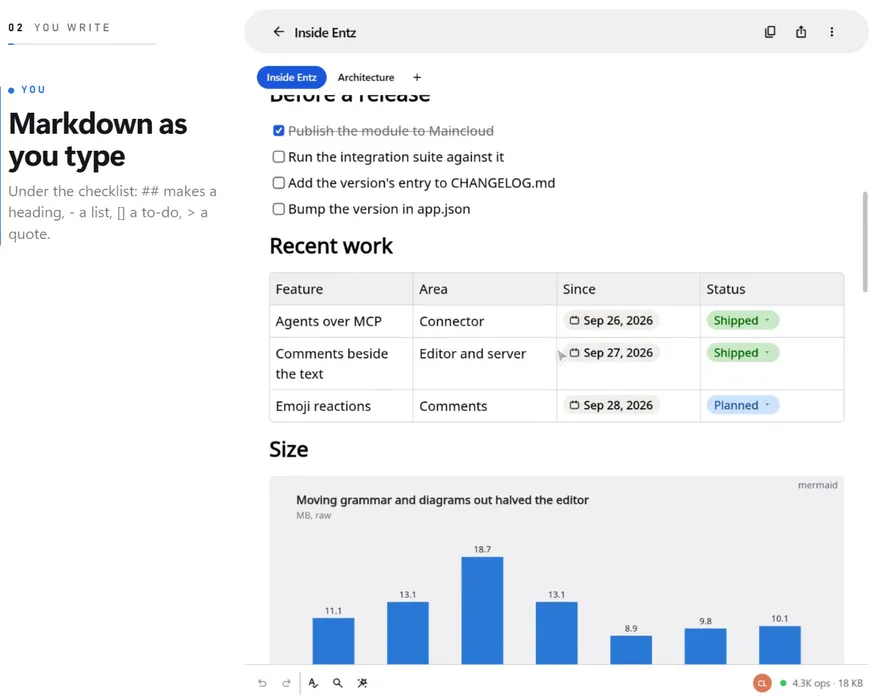
- Click or tap a to-do’s box to tick it. A ticked to-do reads struck through.
The block grip
Section titled “The block grip”With a mouse, a grip of six dots shows in the left margin beside the block under the pointer.
- Press it and the caret goes to the start of the block and its menu opens: the kinds, the block’s own marked, and Delete block at the bottom. When the block holds anything, Delete the block? asks first.
- Drag it to move the block. A line shows where it will land, and the page scrolls as you near its top or bottom edge.
Every block has a grip, tables, drawings and images included. For those, only Delete block in the menu applies.
| Mark | In the selection menu | Keys |
|---|---|---|
| Bold | Bold | Ctrl+B |
| Italic | Italic | Ctrl+I |
| Underline | Underline | Ctrl+U |
| Strikethrough | Strikethrough | Ctrl+Shift+S |
| Inline code | Code | Ctrl+E |
| Link | Link |
A mark goes on over the selected words, or comes off when all of them already have it. With nothing selected, the keys do nothing. Typing straight after bold, italic, underlined or struck-through words carries the mark on; typing after inline code or a link does not.
Text colours and highlights that come in with an HTML file are kept and shown, though the app has no control that adds them.
The selection menu
Section titled “The selection menu”On the web, selecting words raises a row of icons above them: Bold, Italic, Underline, Strikethrough, Code, Link and, when the document is live and you may comment, Comment (Comments). An icon is filled when the whole selection has that mark. Past a divider, Block type shows the block’s kind and opens the list of kinds.
In a table cell the menu keeps the marks, the link and the comment, without Block type. In a code block it holds Comment alone, when you may comment. Someone who may only view the document gets no menu (Sharing and access).
To add a link, select the words and press Link (on a phone, Format, then Link). The Add link sheet takes a web address: paste or type it, then press the check or Enter. An address that names no scheme gets https:// in front.
Put the caret in a link and a small menu shows above the line:
- The link’s address, shortened, opens the link.
- Edit link opens the sheet again, to change the address (Update link) or take the link off (Remove link).
- Remove link takes the link off the words and leaves the words.
Someone who may only view the document gets the address alone. On the web, Ctrl+click on a link opens it in a new tab. Links are drawn in the accent colour and underlined while the pointer or the caret is on them. Typing at the end of a link does not make the link longer.
Selecting and moving text
Section titled “Selecting and moving text”A double click selects a word, a triple click the whole block, and Shift with a click stretches the selection. With a mouse, press inside a selection and drag: a second caret shows where the words will land, and they move there when you let go. Ctrl+X, Ctrl+C and Ctrl+V cut, copy and paste.
The context menu
Section titled “The context menu”On the web a right click opens the editor’s own menu: Cut, Copy, Paste, Select all and Find in document (Find). The caret moves to where you clicked, unless you clicked inside the selection, which the menu then acts on. Paste reads the clipboard through the browser, which may ask you once to allow it. In a table cell, the table’s own items come first (Tables).
Pasting
Section titled “Pasting”What a paste brings depends on what you copied:
- From an Entz document, in any tab or window: headings, lists, quotes, code, tables, marks and chips come across as they were.
- Text that reads as Markdown arrives formatted. A line that starts like a heading, a list, a quote, a code fence, a table row, a divider (
---), an image or a$$formula makes text Markdown, and so do a pair of**, a pair of backticks or a[text](address)link. One paragraph goes in at the caret. Anything more goes in as blocks after the block the caret is in, taking its place when it is an empty paragraph. - Anything else pastes as plain text: a paragraph at each blank line, single line breaks kept. Formatted text copied from a web page or a word processor counts as anything else: its words arrive, its formatting does not. To bring an HTML, Markdown or Typst file in with its structure, import it (Import and export).
In a table cell, pasted text stays in the cell, while Markdown of more than one block goes in after the table. Pasting images is on Images and drawings.
Undo and redo
Section titled “Undo and redo”Undo and Redo sit at the left of the status bar. Ctrl+Z undoes, and Ctrl+Shift+Z or Ctrl+Y redoes. Undo takes back your own edits, never anyone else’s, and puts the selection back where it was.
On a phone
Section titled “On a phone”Writing on iOS and Android works as it does on the web, with touch in place of the mouse:
- A tap puts the caret down with a handle under it and brings up the keyboard. A double tap or a long press selects a word, with a handle at each end; drag a handle and a magnifier shows the text under your finger. Scrolling puts the keyboard away, and the next tap brings it back.
- Formatting is in the system’s selection menu: after its own items, such as copy and paste, a Format entry holds Bold, Italic, Underline, Strike, Code, Link and Comment.
- The grip has no hover to show it. Put a finger down anywhere in the margin beside a block: its grip shows, and a drag from there moves the block. A tap in the margin opens the block menu, and holding still lifts the block, ready to move.
- A to-do’s box ticks with a tap, and the caret and the keyboard stay as they were.
- Indenting a list takes
Tab, which on-screen keyboards do not have. - Images cannot be pasted on a phone yet. Image in the slash menu picks one from the device.