Tabs
One document, several pages: each tab has its own content, history and comments, shared with the same people as the document.
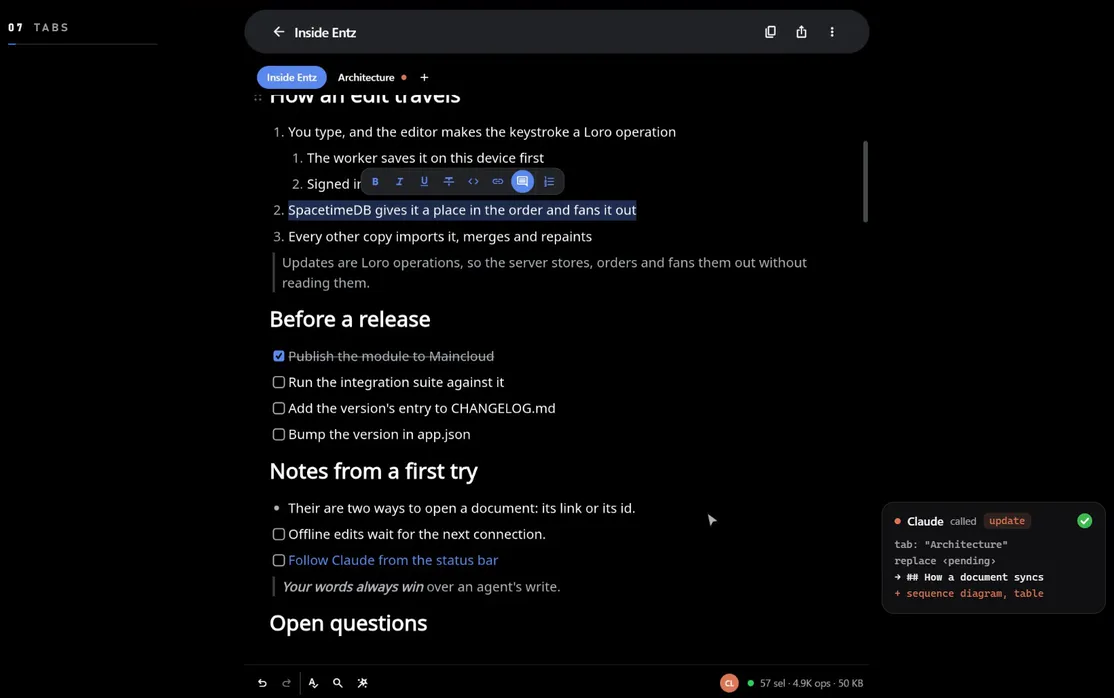
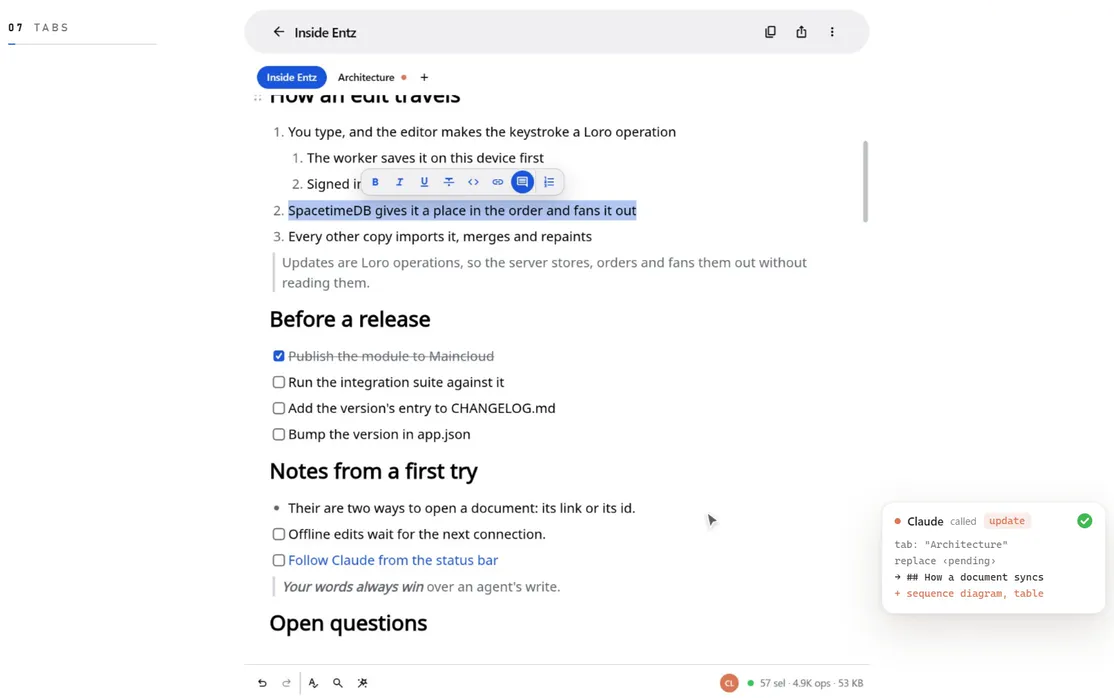
A document can hold tabs: pages of their own inside it, each with its own content, history and comments. The document’s own page is its main tab. Tabs suit things that belong together but read better apart, such as a plan and its notes, or a report and its appendix.
The tab strip
Section titled “The tab strip”Once a document has tabs, a strip of them shows under its header: the main tab first, then the others in order. The tab you are on is filled; press another to go to it. On a phone the strip is the same, and it scrolls sideways when the names do not fit.
Adding a tab
Section titled “Adding a tab”- Open the document menu (the three dots in the header) and choose Add tab…, or press Add tab, the
+at the end of the strip. - Type the tab’s name in the Add tab sheet and press Add.
The new tab goes at the end of the strip and opens, empty and ready for its first line. The first time a document gets a tab, its own page becomes the main tab, named after the document.
Adding tabs takes a writer of the document, signed in and online. The app does not rename, reorder or remove tabs yet; an agent can, through the connector’s tabs tool (The eight tools). An agent can also nest a tab under another as a subtab, and the strip then shows it in its place among the others, without the nesting.
A tab’s link
Section titled “A tab’s link”Every tab has a link of its own, the document’s link with the tab after it:
https://entz.app/doc/<document id>?tab=<tab id>On the web the address bar shows it while the tab is open, so copy it from there to send someone to that tab. Copy link in the document menu copies the document’s own link, which opens the main tab.
Who can see a tab
Section titled “Who can see a tab”A tab has the document’s people: whoever can open the document can open every tab in it, with the same role, and joining the document through its link joins its tabs too (Sharing and access). The library lists the document once, and its tabs open from the strip (The library). When the document’s owner deletes it, its tabs go with it.
What each tab keeps
Section titled “What each tab keeps”A tab is a document in its own right. History… in the document menu shows the versions of the tab you are on, Comments… its comments, and Export and Copy as Markdown in the header act on it alone (History, Comments, Import and export).
Tabs live on the server. They show while you are signed in and online, and a tab has no copy on your device yet, so it opens only with a connection (Offline and sync).
Who is on which tab
Section titled “Who is on which tab”Everyone on any of the document’s tabs shows in the status bar, once each, whichever tab you are on. Beside every other tab in the strip, a dot in each person’s or agent’s colour says who is there, pulsing while they type; past three dots, a number counts the rest. Press someone’s avatar to follow them, and the page goes to their tab with them (Presence and following).
An agent connected over MCP adds tabs as it writes, and you can watch it fill one while you work on another (Working beside people).